
Vizard AI Review 2026: Clip Quality, Captions and Costs Tested
Vizard AI turns long videos into short clips for YouTube Shorts, TikTok and Instagram. I tested it in two sessions. The first took the free plan end to end on a 27-second horizontal MP4: signup, upload, one AI clip, captions, 9:16 reframing, the editor and the download. The second, in August 2026, put a 10-minute 1080p video through both of Vizard's clipping models. I downloaded and inspected the clips, checked the captions against an official transcript, and recorded the credit balance at every step.
Prices and limits change, so check Vizard's own pricing page before you buy.
⚠️ Is Vizard AI Free?
Yes. The free plan is permanent and gives you 60 credits a month, but every download is 720p and carries a watermark. One credit covers one minute of video, so the free plan handles about an hour of footage a month.
You do not need an account. You can paste a link, get your clips and download them without signing up. An account only keeps your project for 3 days instead of 24 hours.
- Credits: 60 a month, 1 credit per minute of video
- Export quality: 720p only
- Longest clip: 10 minutes
- Storage: 3 days with an account, 24 hours without
- Watermark: on every free download
Our verdict: good for testing AI clipping on your own footage, not for publishing from the free plan.
Disclosure: CreatorIntelHQ may earn a commission if you buy through some links. This review is based on hands-on testing.
Choosing between clipping tools? See Vizard AI vs OpusClip. New to AI video tools? Read how to test an AI video tool before paying first.
Based on hands-on testing · How we test creator tools
What I found
| Test area | Result |
|---|---|
| Signup | Gmail signup worked. A short onboarding survey took about a minute. |
| Upload | MP4 worked. MKV was rejected. |
| Credits | The 27-second test cost 1 credit (60 to 59). Downloading cost nothing. |
| Clips | One clip from the 27-second video, scored 8.0/10 by Vizard. |
| Captions | Created automatically. Mostly right, but some words were wrong. |
| Reframing | The 9:16 crop did not always keep me in the centre of the frame. |
| Download | An upgrade prompt appeared first. After closing it, the download worked. |
| Watermark | Every free download carried a Vizard watermark. |
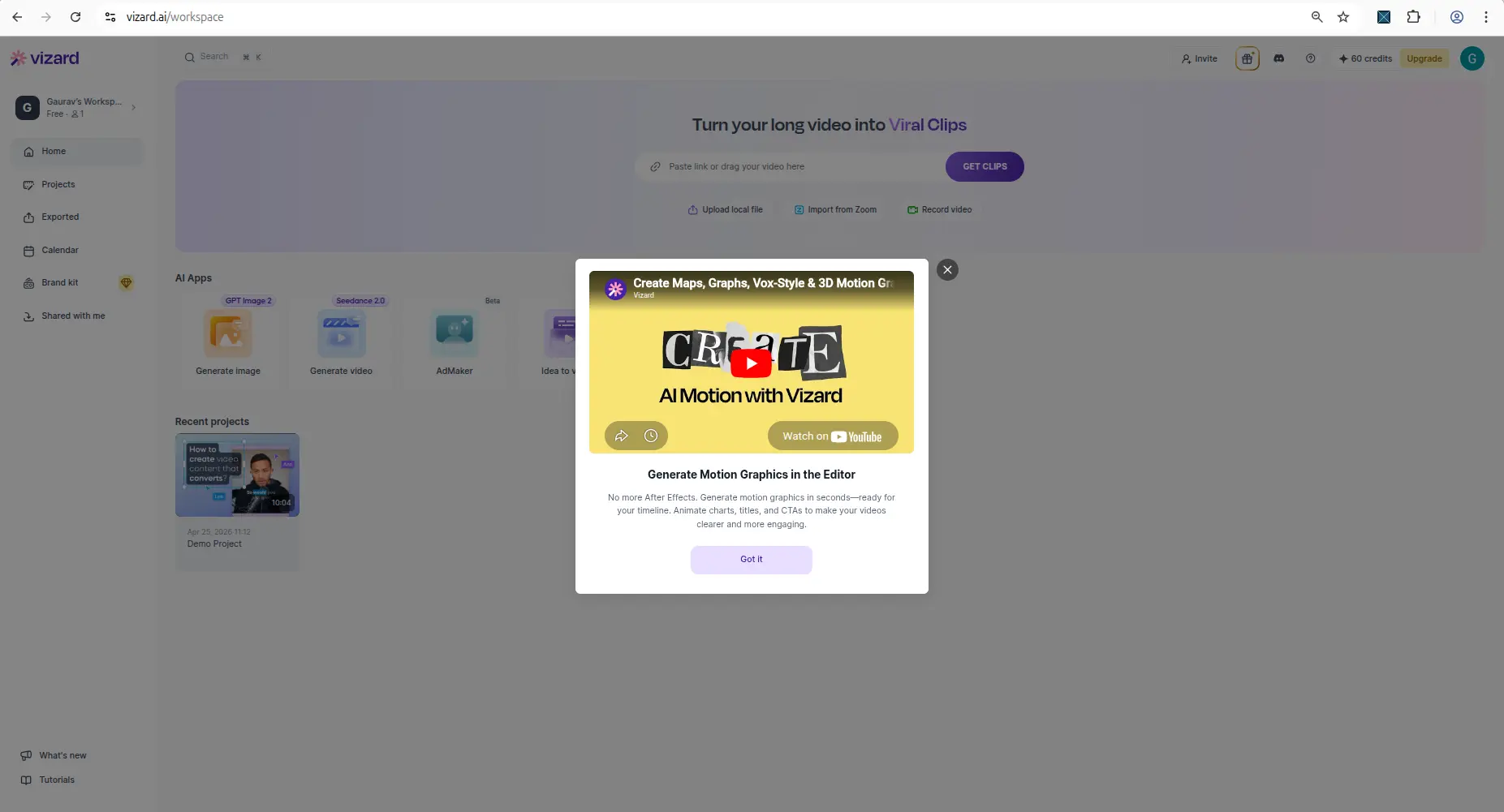
The free dashboard shows your credit balance and every way to add a video: paste a link, upload a file, import from Zoom or record.
Is Vizard AI Free? Every Free-Plan Limit, Tested
This section lists every free-plan limit. Most we measured ourselves. A few we only read from Vizard's pricing page, and those are marked as documented.
What the free plan covers in a month
Drag in what you publish. The credit costs were measured in the product, not taken from the pricing page.
Your month
Tell us what you actually publish. We work out what each free plan covers.
Source length, not finished-clip length — every tool bills on what you upload, not what you publish.
The limits
| Limit | Free plan | Source |
|---|---|---|
| Credits | 60 a month, refreshed monthly. 1 credit per minute of video on Model v1. | Tested, re-checked 15 Sep 2026 |
| Export quality | 720p only. A 1080p upload comes back as 720x1280. 1080p, 2K and 4K are paid. | Tested |
| Longest clip | 10 minutes per exported clip. | Tested |
| Storage | 3 days with an account. 24 hours without one, with a countdown on the results page. | Tested |
| Watermark | On every free download, built into the video itself. Removing it needs a paid plan. See the Vizard watermark test. | Tested |
| Frame rate | Kept. A 30fps source exported at 30fps and a 60fps source at 60fps. | Tested |
| File formats | MP4, MOV, 3GP, AVI, MP3, WAV and M4A. MKV is rejected. | Tested |
| Clipping model | Model v1 and Model v2 are both available. v2 costs more credits. | Tested |
| Subtitle file | No SRT or VTT download. You can read the transcript on screen, and Vizard's plan table lists TXT only for free. | Tested |
| Auto-censor | Available. It replaces sensitive words with a beep or silence. | Tested |
| Paid-only features | Bulk download, B-Roll, brand templates and translation. | Tested |
| Upload length | 60 minutes per video. One hour-long upload uses the whole month's credits. | Documented |
| Upload size | 1GB per file (30GB on paid plans). | Documented |
| Upload quality | Up to 1080p. The limit is on what comes out (720p), not what goes in. | Documented |
| Social accounts | One connected account. You can share exports but not a working project. | Documented |
| API | Available, limited to 1 request a minute and 10 an hour. | Documented |
The documented limits come from Vizard's pricing page, read without signing in on 15 September 2026. Everywhere we have checked both, Vizard's published figures matched our testing.
Got an email offering "120 free minutes"? We received one in September 2026. It is a promotion, not the free plan. Vizard's public pricing page, checked without signing in on 15 September 2026, says 60 credits a month in three places. If you were offered more, check your own balance before you plan around it.
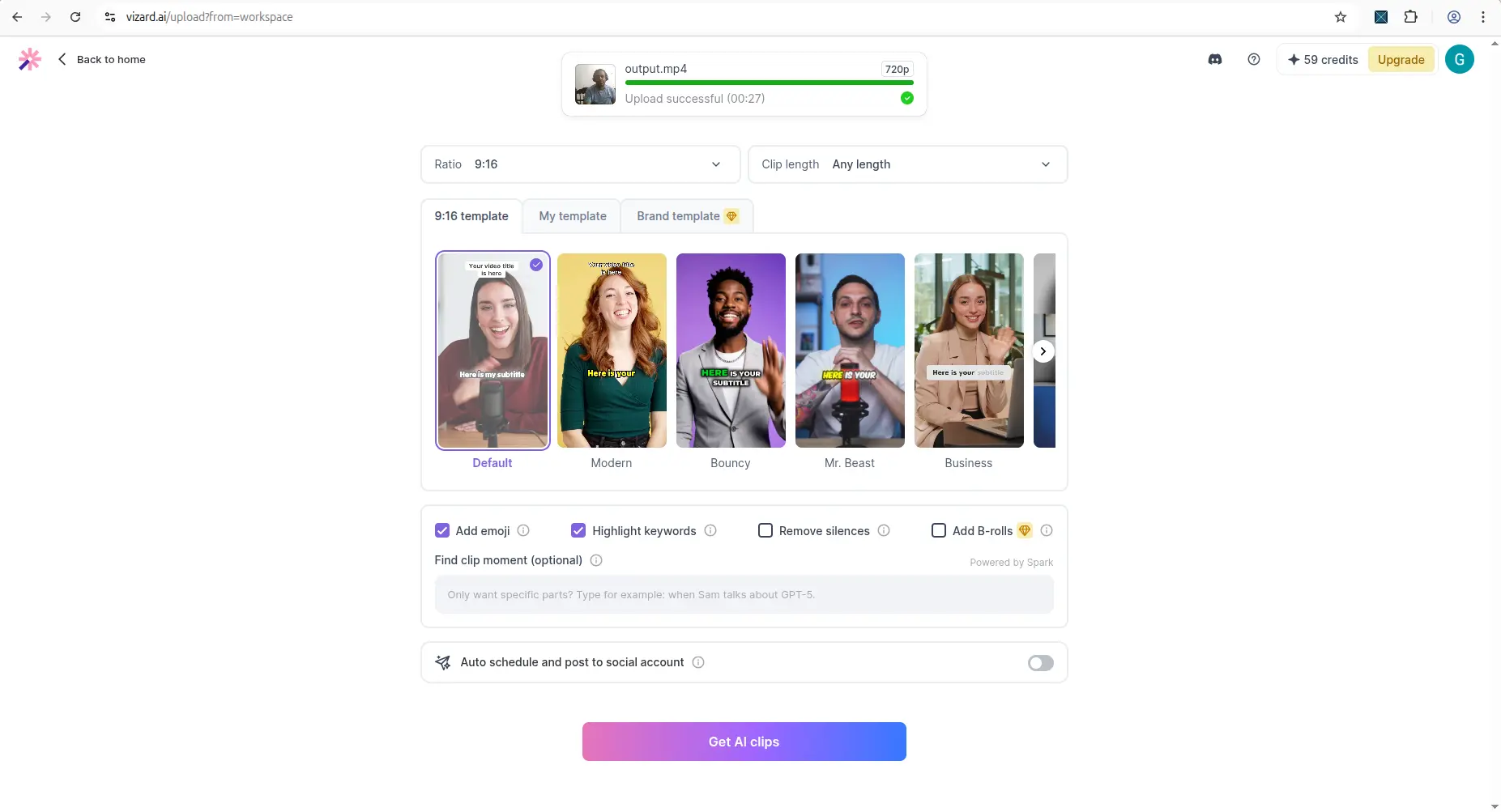
Paid features are visible on the free setup screen, marked with a paid badge.
How many clips 60 credits buys
Vizard charges for the length of the video you import, not for the clips you get back.
- A 10-minute video uses 10 credits, so you can process about 6 a month.
- A 5-minute video uses 5 credits, so you can process about 12 a month.
- A short video under a minute uses 1 credit, so you can process up to 60 a month.
The free plan goes a long way if you work with short videos. It runs out quickly if you process full podcasts or long talks.
Model v2 costs about 30% more. Vizard added a second clipping model in July 2026. Both models are on the free plan.
| Video length | Model v1 | Model v2 |
|---|---|---|
| 10:01 | 10 credits | 13 credits |
| 22:48 | 22 credits | 28 credits |
| Rate | About 1.0 credit a minute | About 1.3 credits a minute |
So 60 free credits cover about 60 minutes of video on v1, or about 46 minutes on v2. In our test, v2 returned fewer, longer clips and did not improve captions or export quality. The full comparison is in Vizard AI Model v1 vs v2.
Credits go when you import. Vizard takes the per-minute charge as soon as you add a video, before you choose any settings. If you stop at the settings screen, you do not get the credits back. The extra v2 charge comes later, when the clips are generated.
Check your model before you generate an old draft. The model menu only appears on the import screen, so it looks like each project keeps its own model. It does not. The model is an account setting, applied when you generate. If you import a video on v1, switch to v2 for something else, and then generate the first video, it runs on v2 and charges you the difference.
Upload the file instead of pasting a link
Pasting a YouTube link and uploading the file cost the same credits, but they do not give the same quality. We ran the same footage both ways on the free plan, with the same model and settings.
| How we added the video | Source bitrate | Clip bitrate | File size (55-second clip) |
|---|---|---|---|
| Uploaded the original file | About 5,000 kbps | About 2,580 kbps | 17.8 MB |
| Pasted the YouTube link | About 1,233 kbps | About 437 kbps | 3.0 MB |
Both clips were 720x1280 and the same length, but the uploaded one had about six times the bitrate. YouTube's copy of your video is already heavily compressed, and Vizard works from whatever it is given. If you still have the original file, upload it.
We measured one matched pair of clips, and busy scenes can change bitrate. The gap is much bigger than that would explain, but treat "six times" as a rough scale, not an exact number.
You can use it without an account
Vizard's homepage says "Try it free. No sign up needed." In April 2026 that was not true: a sign-up window blocked processing. When we tested again in a logged-out browser on 25 August 2026, it was true.
We pasted a link and the video processed with no account. The run returned 10 finished clips from an 8-minute-41-second video, each at 720p with the watermark and with a download button. We downloaded one without signing in. The only sign-up prompt is optional and offers to notify you when the clips are ready.
The difference is how long your work is kept. A banner counts down from 24 hours on an anonymous project. A free account keeps it for 3 days.
One thing we could not find out: while logged out, Vizard shows no credit balance. We do not know whether anonymous use draws on a hidden allowance or is limited another way, so do not assume it is unlimited.
Still not sure which tool to use?
Get a match based on our hands-on tests of all four tools - and what each one actually allows for free.
Vizard AI pricing
Vizard sells two paid plans above Free. We rechecked the prices on 12 August 2026.
- Creator costs $14.5 a month on yearly billing ($174 a year), which is half the $29 monthly list price. It includes 7,200 credits a year, no watermark, 4K export, scheduled posts, 100GB of storage and up to 6 social accounts.
- Business costs $19.5 a month on yearly billing ($234 a year), which is half the $39 monthly list price. It includes 7,200 credits a year, up to 20 social accounts, unlimited storage, a shared team workspace and a brand kit. Extra team members are charged per seat.
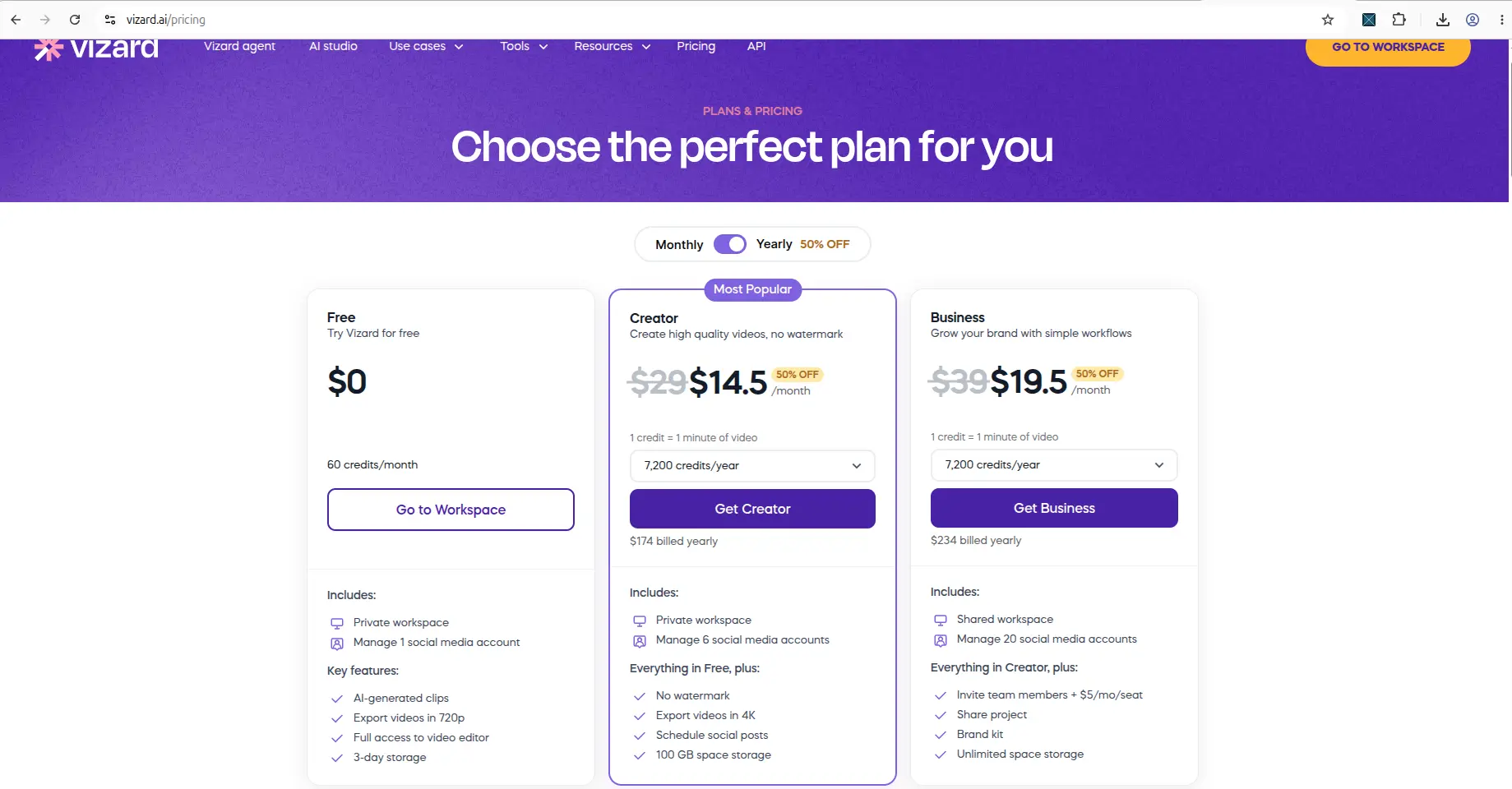
Vizard's pricing page on 12 August 2026.
Paying removes the watermark and lifts the 720p limit together, so one upgrade solves both. Paid plans also process faster and add AI post suggestions. We track these prices against five other tools in our pricing comparison, which flags any change.
Uploading: MP4 works, MKV does not
My first upload was an MKV file, and Vizard rejected it straight away. The error message listed the formats it accepts: MP4, MOV, 3GP, AVI, MP3, WAV and M4A.
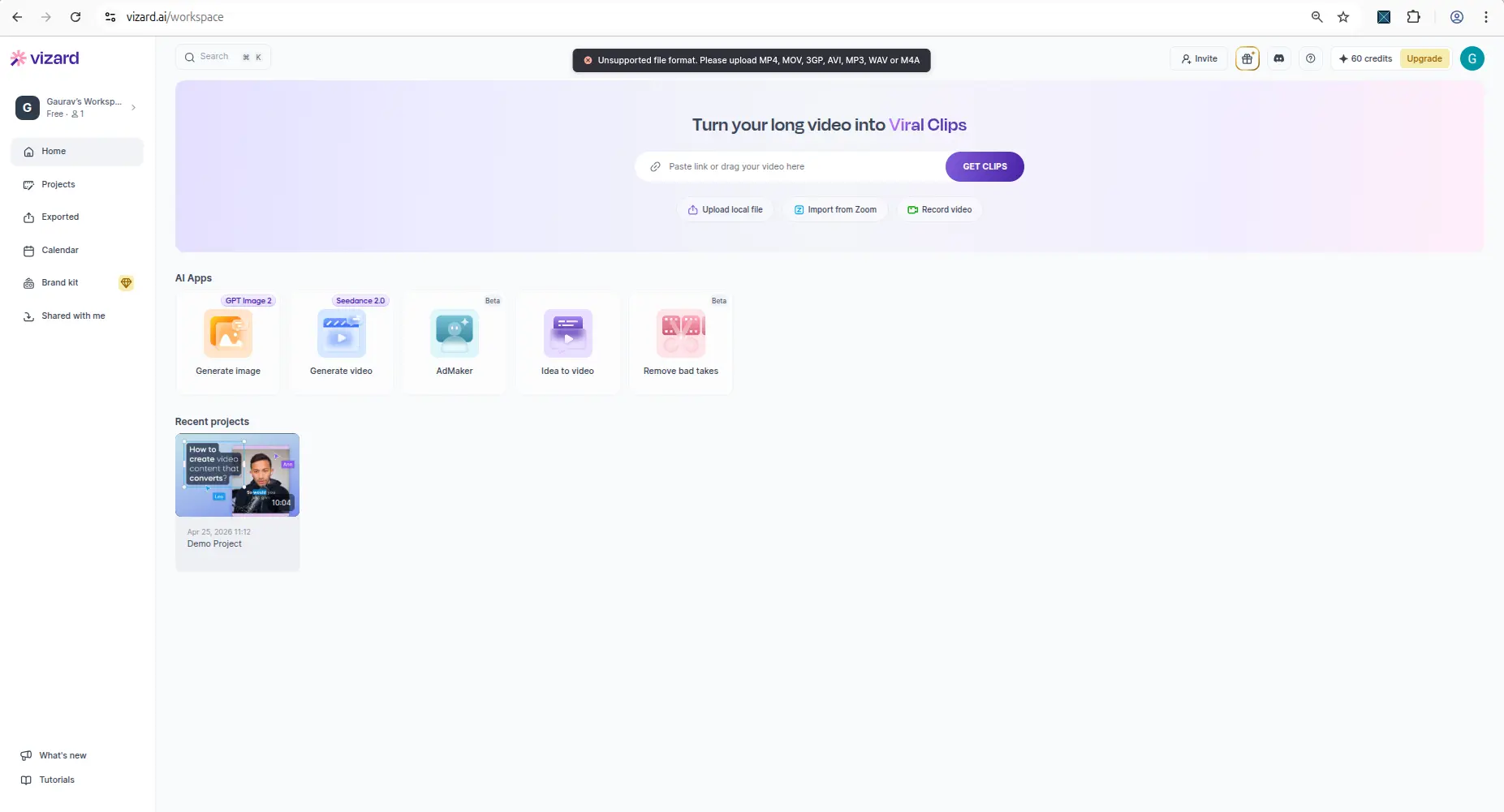
The format error names the files Vizard accepts.
This matters if you record with OBS, which often saves MKV. You will need to convert the file to MP4 first.
Clip quality, captions and reframing
From the 27-second test video, Vizard made one clip and gave it a score of 8.0 out of 10. The result screen showed the clip title, a 720p label, the transcript, and buttons to preview, edit, publish and download.
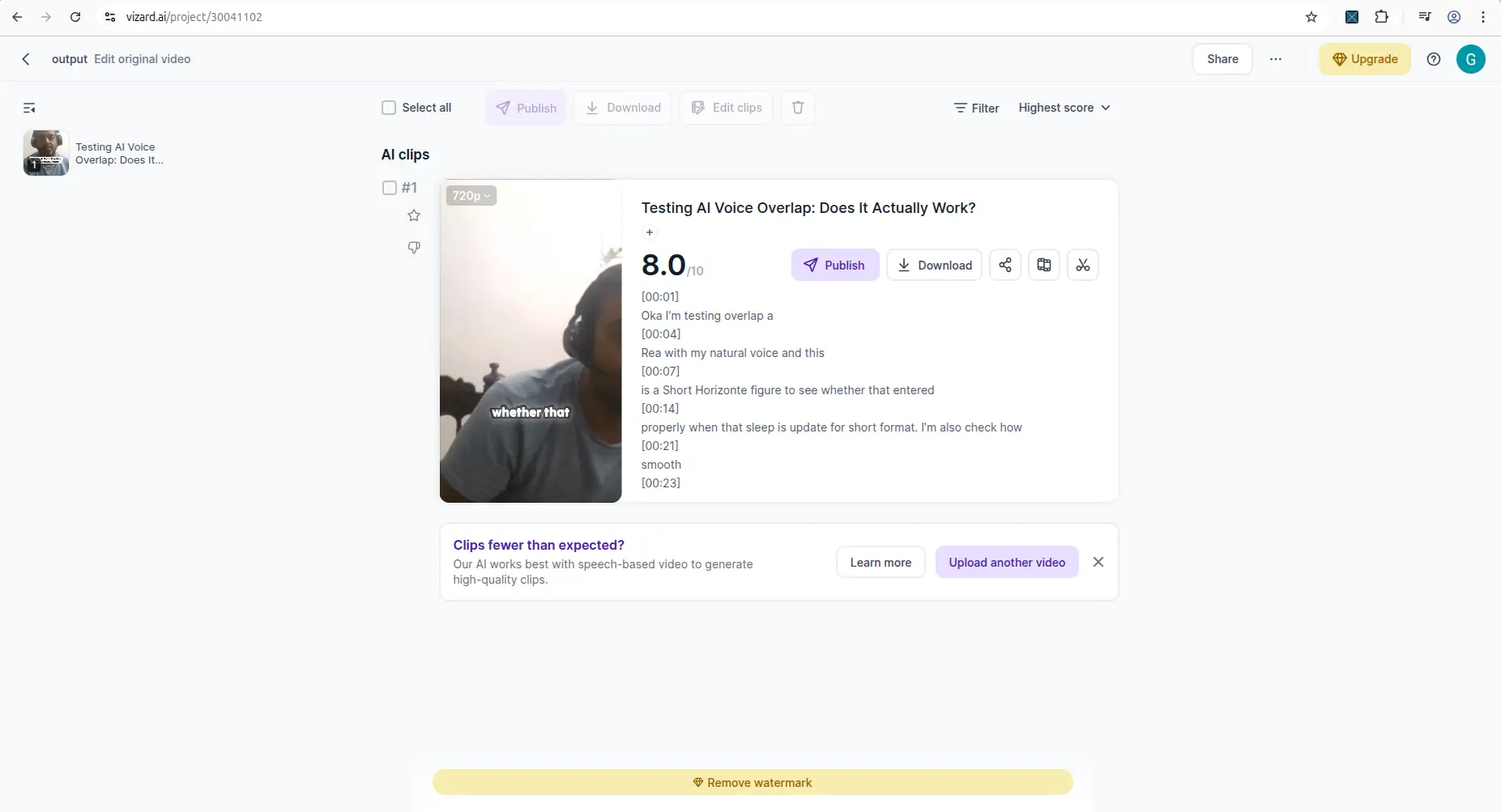
The result screen for the first test clip.
Captions were created automatically. They were mostly right, but some words were wrong, so read them before you publish.
Reframing to 9:16 did not always keep me in the centre. Part of my face and body drifted toward the edge of the frame. Check the crop before you publish.
These first clips came from the original model. For longer footage, see Model v1 vs v2. There, Vizard turned a 22:48 press conference with four people in one wide shot into a three-panel split screen instead of cropping to the speaker. We have not yet tested caption accuracy on overlapping speech, or run a real podcast through it.
Watermark and download
When I clicked download on the free plan, Vizard first showed an upgrade window with its paid plans. After I closed it and clicked again, the file downloaded.
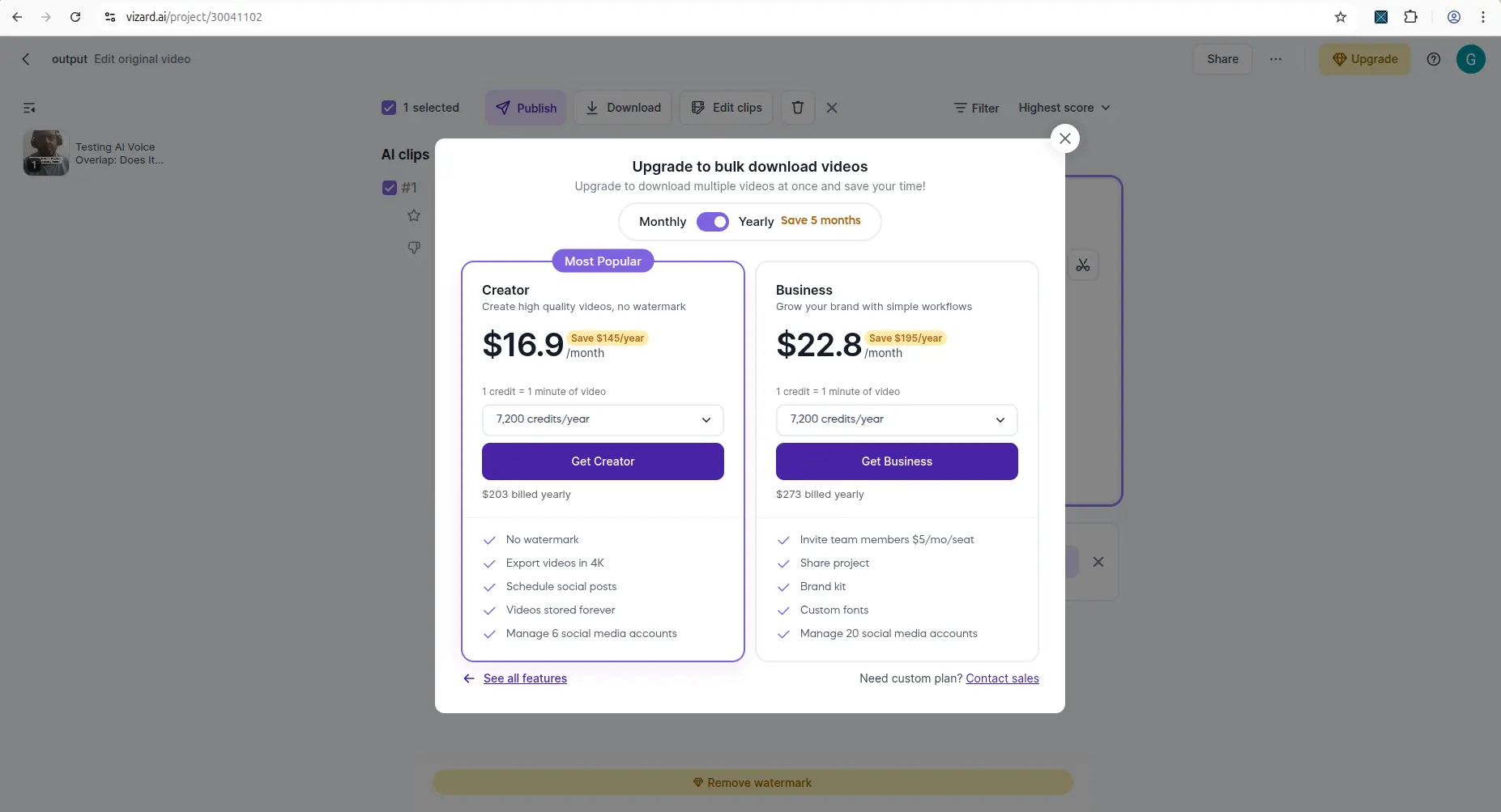
The free result screen shows the watermark and a "Remove watermark" bar.
The downloaded clip had a Vizard watermark. It is part of the video
itself, not an overlay a player adds, which we confirmed with
ffprobe. Downloading did not use any credits. Where the
mark sits and what removing it costs are covered in Vizard AI Watermark: Can You Remove
It Free?
What Vizard added in 2026
Vizard added a lot between our April and August tests. Most of it is on the free plan.
- Model v2 (8 July 2026) is a second, slower clipping model that returns fewer, longer clips.
- Auto-censor (July 2026) replaces sensitive words with a beep or silence. You can manage the word list.
- AI Apps include Vizard Agent (in beta), motion graphics, video and image generation, AdMaker, idea to video and "Remove bad takes".
- An Android app launched on 2 May 2026.
- New ways to add video: import from Zoom and record in the browser.
Vizard Agent is blocked in some countries. From India, clicking it opens agent.vizard.ai and returns a CloudFront 403 error: "The Amazon CloudFront distribution is configured to block access from your country." We saw this in the browser and in a direct server request on 25 August 2026. The main site loaded normally from the same connection.
We only tested from India, so we do not know which other countries are affected, or whether it is deliberate. If Vizard Agent is why you want the tool, make sure it loads for you before you pay.
Is Vizard AI safe?
Does it do what it says? Yes. Across two tests, signup worked, the credit balance matched what we used, and the downloads worked.
Is your data safe? I have not tested that. This review covers the workflow, not Vizard's security or privacy practices. For that, read Vizard's terms.
Pros and cons
Pros
- The free plan is permanent, and you can try it without an account.
- The dashboard shows your credits and upload options clearly.
- Captions are created automatically.
- The result screen has preview, edit, publish and download in one place.
- The MKV error lists the formats that do work.
- Frame rate is kept, and auto-censor is free.
Cons
- Every free download is 720p and watermarked.
- An upgrade prompt appears before each free download.
- Captions and 9:16 reframing need a manual check.
- MKV files must be converted first.
- Pasting a link gives a much lower-bitrate clip than uploading the file.
- The processing screen shows no time estimate.
Who should try Vizard AI, and who should skip it
Try it if you want to see what AI clipping does with your own videos. The free plan is enough to check whether your video uploads, how the clips look, and whether the captions and framing are usable.
Skip the free plan if you need clean, watermark-free videos to publish right away. Be careful, too, if you record in MKV or need captions and framing to be right without checking.
Vizard AI alternatives
The closest comparison is OpusClip. See Vizard AI vs OpusClip, and the two free plans side by side. If captions and editing style matter more than automatic clipping, read the Submagic review. For a wider list, see our best YouTube tools for small creators, or try the YouTube Tool Match Finder.
Final verdict
Vizard AI is a good way to test AI clipping on your own footage for free. You can go from upload to downloaded clip without paying, and without an account.
The free plan is for judging the tool, not for publishing. Clips are 720p and watermarked, and the captions and framing still need a check. Pay only if the clips are good enough for your content and the watermark or 720p limit is what is holding you back.
My recommendation: Run one real video through the free plan first. If the clips, captions and framing work for you, compare the paid plans for watermark removal and higher export quality.
Used one of these tools? Share your experience with CreatorIntelHQ so we can improve future reviews, comparisons, and free-plan guides for small creators.
More on Vizard AI
- Does Vizard AI add a watermark? — the mark is burned into every frame, inspected with ffprobe
- Vizard AI Model v1 vs v2 — same video, both models: 10 clips vs 5, and 30% more credits
More on OpusClip
- OpusClip Review 2026 — the hands-on walkthrough and AI Reframe results
- Does OpusClip watermark your clips? — a real 1080p free export, with the mark absent for the first four seconds
Head to head
- Vizard AI vs OpusClip: Free Plan — the two free tiers side by side
- Vizard AI vs OpusClip — the broader feature comparison
- Which AI video tools remove silences free? — none of the four, and Vizard does not offer it at any price
Wider guides
- Best AI Video Repurposing Tools
- AI Subtitle Tools for YouTube Creators
- Best Tools for Small YouTube Creators
- Submagic Review 2026
- Quso.ai vs Vizard AI
FAQ
Is Vizard AI free?
Yes. Vizard has a permanent free plan with 60 credits a month. Free downloads are 720p and carry a watermark, and projects are kept for 3 days.
How many minutes do you get on Vizard AI's free plan?
About 60 minutes of video a month. Model v1 uses 1 credit a minute, so 60 credits covers about an hour. Model v2 uses about 1.3 credits a minute, which brings it down to about 46 minutes. Credits are taken when you import a video and refresh every month.
What is the export quality on the Vizard AI free plan?
720p only. We uploaded a 1920x1080 video, and Vizard exported the clips at 720x1280. In the export menu, 1080p, 2K and 4K are all marked as paid.
Does Vizard AI's free plan include Model v2?
Yes. Both models are on the free plan. Model v2 costs about 1.3 credits a minute, against about 1.0 for v1.
Can you download subtitles on the Vizard AI free plan?
No. You can read each clip's transcript on screen, but there is no SRT or VTT download on the free plan. You can still upload your own subtitle file when you import a video.
How long does Vizard AI keep free clips?
3 days with a free account, and 24 hours without one. Download anything you want to keep before then.
Can you use Vizard AI without signing up?
Yes, since August 2026. We pasted a link in a logged-out browser on 25 August 2026, and the video processed and downloaded with no account. In our April 2026 test, sign-up was required.
Does Vizard AI add a watermark?
Yes, on every free download. An upgrade prompt appears first. After you close it, the download works, and the file has a Vizard watermark built into the video.
Does Vizard AI support MKV files?
No. Our MKV upload was rejected. Vizard accepts MP4, MOV, 3GP, AVI, MP3, WAV and M4A, so convert MKV recordings to MP4 first.
Are Vizard AI captions accurate?
Mostly. Vizard created captions automatically, but some words were wrong in our test. Read them before you publish.
Is Vizard AI good for YouTube Shorts?
It can make vertical 9:16 clips with captions from a horizontal video. In our test, the crop did not always keep the subject centred, so check each clip before you publish.
Is Vizard AI worth paying for?
Test the free plan first. Paying makes sense if the clips suit your content and the watermark or the 720p limit is what stops you from publishing.